Remember when AOL sent out CD-Roms in the mail?

I remember there was a time when internet was still new and exciting,…and on 56K; that’s dial-up phone line connection for the younger readers out there. Home computers was an idea that existed since the 80s which was around and made possible with computers such as the Macintosh; home computers was something that didn’t really begin to take off until about the mid-to-late 1990s. Up until then, computers were still prohibitively expensive.

But now, prices were going down to where more families can afford to purchase one. And I think the economy may have been doing pretty good as well, so many people has a good amount of disposable income. To go along with the Macintosh, consumers also had selections such as the Compaq Presarios and the Gateway computers. I think EMachine’s in there somewhere too. And along to go with the home computers that was showing up more in many middle class homes was the amazing possibility of the “World Wide Web”.

During this time when I don’t think Google was around yet and the web browser of choice was “Netscape Navigator”, the only way most people such as myself knew how to “navigate” the internet (although to be honest I still wasn’t quite sure what the internet was and I was using the school’s computer as it would be a few years before a home computer was possible in my home) was using search engines. What options did we have? Well, we had “Metacrawler” and “Alta Vista” to name a couple. I think AskJeeves came along around that time too.

Well, to go along with the many home computers and what possibilities the exciting internet had to offer, there was a need for a service provider. This is where AOL comes in. Although most people may not remember them today, AOL (America Online) was one of the biggest service providers for internet during the mid-1990s and going into the 2000s. They also played a role in other aspect of the internet, such as the instant messaging called AIM. I remember this was the way many young people communicated as I don’t think “texting” was a thing yet.

Heck, I think there was a movie called “You’ve Got Mail” which was a “romantic” comedy starring Tom Hanks and Meg Ryan; the title of the movie was based on AOL’s slogan for their email account service if I recall accurately. That’s how big AOL was.

If I remember correctly, AOL was preinstalled on many new home computers that were purchased by consumers. That was definitely one way to get recognized and gain new customers. Another way was sending CD-Roms, like the one I have pictured above, to everyone’s mailboxes all over the United States. And in addition to this, sometimes these CD-Roms were available in your retail stores, like Circuit City and CompUSA that existed at the time.

“What was on these CD-Roms?”, you asked (or maybe not, but I’m going to pretend you did for the sake of this blog post subject). Well, free trial of internet service. The amount of hours you have available of these free trial varies, but I think 1099 hours like the one shown above is quite common. Seeing these free internet trials CD-Roms from AOL and the like in your mailbox’ stack of fliers and advertisements each week was quite normal during the late 90s.

These CD-Roms were everywhere. One such example is the one pictured above. I think this one was from around 2004. And to go along with the 1099 hours free trial of internet service, a free game to help promote the new Spongbob Squarepants movie that was coming out later that year. For those that are wondering, it was a pinball-style game that I think ran on “Macromedia.” How’s that for nostalgia? To make it even more authentic, I ran it on my Toshiba Windows XP laptop that I bought back in 2005. Wow, I’m ancient 😉

I’m glad I kept this example around as it’s sort of a time capsule item for me. Unfortunately, most of the other AOL CD-Roms that I had gotten I no longer have as they were discarded; this was a time when I didn’t even have access to a home computer and had no use for them. Believe it or not, these AOL CD-Roms are actually somewhat a collectible item. So, if you have some laying around your home somewhere, who knows…it might be worth something.

After-School Cartoons: Growing Up in the 90s

Just a small blurb I’m making about growing up as a child in the early 1990s. One of the things I remember vividly was the After-School cartoons that came on television after I got home from school.

The picture above captures and summarizes After-School cartoons…well, sort of.

The Super Nintendo cartridge above is actually for the movie “Batman Returns” (which came out in 1992), but that was the inspiration for the “Batman The Animated Series” that was one of the highlights of my childhood. The series really captured the “dark, serious tone” that was portrayed in the Tim Burton’s Batman films at the time. Looking back, I appreciate how the people that worked on the animated series were able to keep the presentation appropriate enough for children. What’s more amazing is how the show really holds up against the test of time and can be appreciated by adult viewers.

The Super Nintendo cartridge at the bottom of the picture is for “Animanics”. This was also another after-school cartoon series that I fondly remember quite well. Thinking about it, I like how they have other characters within their own little story time-slot; sort of like a mini series within a series. For example, Pinky and the Brain. It was bright and wacky cartoon series. Not sure if I will enjoy it now like I did as a child, but I will always appreciate it from a sentimental perspective due the importance that it had on my childhood.

The time of year that these after-school cartoon series meant so much was around the holidays, when a lot of them would have a special holiday episode. I didn’t have a whole lot back in those days, but with things like after-school cartoons in my childhood, I felt I had enough to make me happy.

SEO-ify Your Site

Search Engine Optimization plugins for your WordPress Site

Is SEO important to your site? Why or why not? SEO is important to my website because I plan on using it as a portfolio page and as a resume reference page (when employers google search potential applicants for employment consideration). I hope that the website rank as well as I can possibly make it so it’ll be easier for potential audiences/employers to find.


What SEO plugin did you choose to use? What other plugins did you consider? Why did you choose the one you did? I selected “Yoast SEO” because we went over this plugin during our class lecture. Also, utilizing the strategy we’ve learned a while back about things to consider when selecting a plugin (active installation, ratings based on 5 stars, how many people have wrote reviews, how many active installations it has, how recent was the plugin updated), Yoast SEO ranks highest overall among other SEO plugins.

I’ve also considered RankMath and All-in-One SEO because it was mentioned in one of our reading assignments: https://createandcode.com/best-wordpress-seo-plugins/

I chose “Yoast SEO” because I’m still a beginner and it’s seemed like the most safe bet (I had a preview of what it looks like and how to use it in class). I will keep the other two SEO plugins in mind as I continue to work with WordPress after class concludes to better my understanding. Perhaps they will become a better option for my WordPress later on.

What features did you use? I used the following features:

  • “Activating the Yoast SEO extension for W3 Total Cache may be helpful for your site. Click here to try it.” I had installed the “W3 Total Cache” plugin last week to help with my WordPress site performance, which involves Cache and Content Delivery Network (CDN)

I also went through the “Search Appearance” tab under “SEO” on the Dashboard and went through the different settings within:

  • General
  • Content Type
  • Media
  • Taxonomies
  • Archives
  • Breadcrumbs
  • RSS


Are you using other plugins to help with SEO? Which ones? What do they do?

I’m using W3 Total Cache plugin to help with the performance and speed of my site. Its does this by caching my website. Coincidentally, Yoast SEO has an extension that’s compatible with W3 Total Cache that can help improve my site. After taking some time to look into it, I’m still not sure what it really does.


What changes did you make to your code to help improve SEO?

I try to keep my codes as clean and simple as I possibly can. I’m utilizing the post name format for my post’s URL. Any images I’m uploading to this WordPress site I gave it names that make sense and describes what the image is.

Is that how you want it to look? If so, how did you get it that way? If not, what are
you going to do to change it?

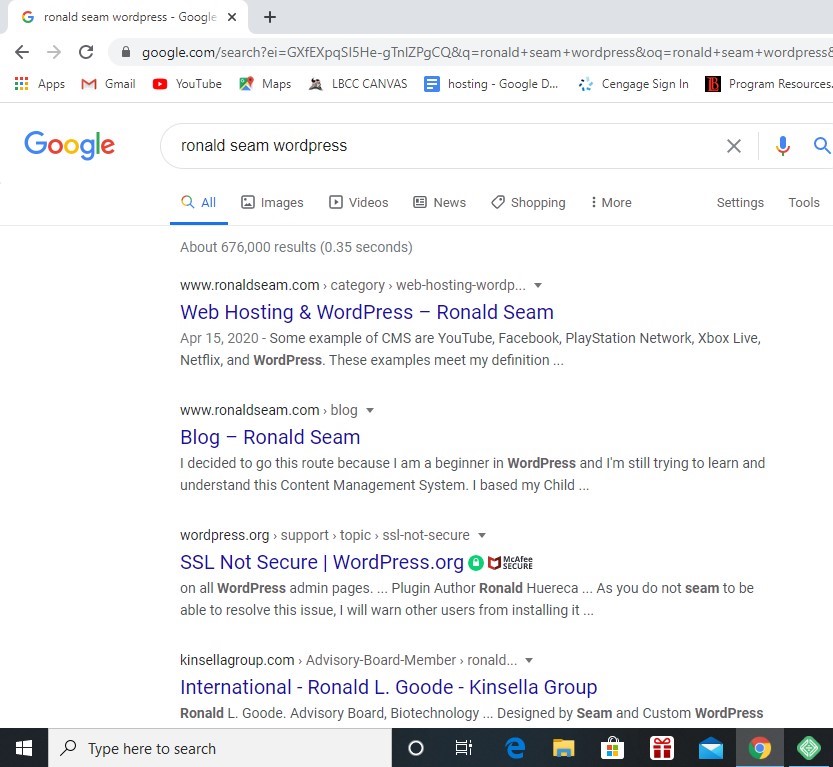
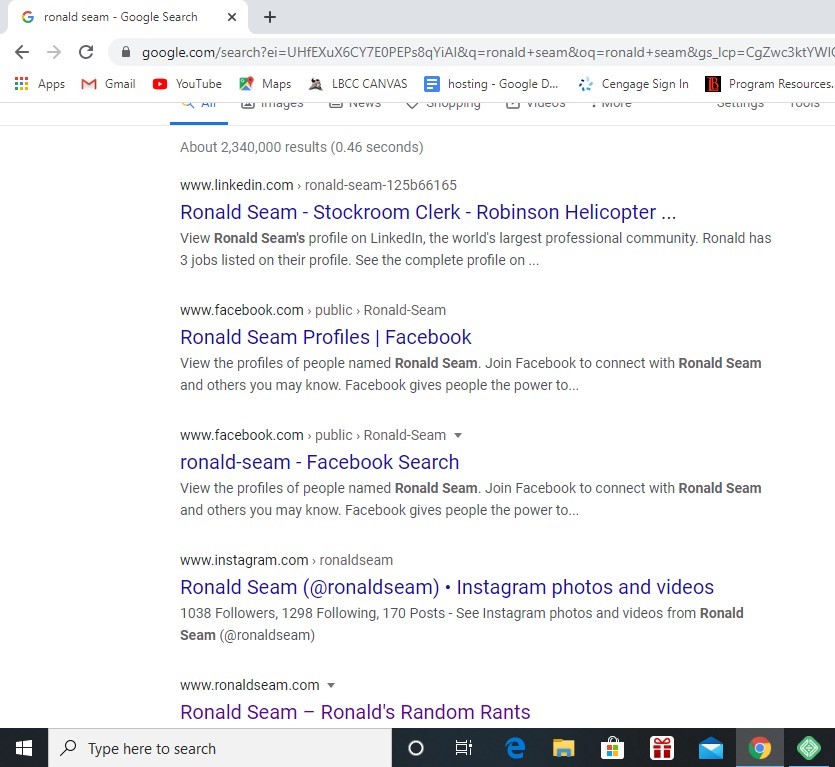
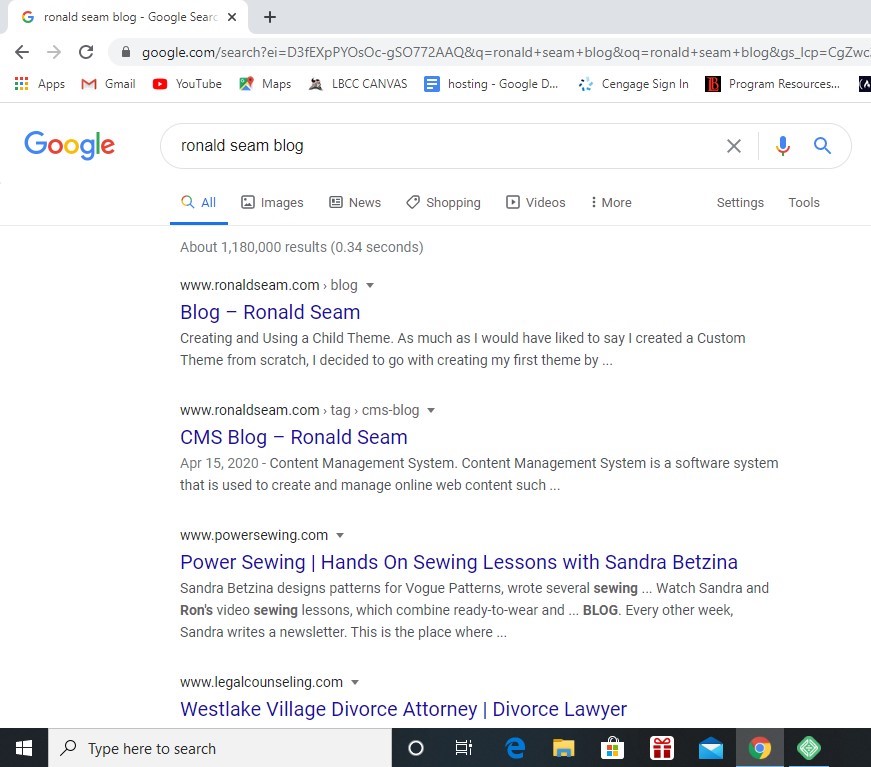
I’ve included the following snapshot of the google search results:

Overall, I thought it looks decent and I’m content with the results for now. Googling “Ronald Seam Blog” and “Ronald Seam WordPress” puts my website at the top of the search.

The third result, and the one that potential employers will most likely search, for “Ronald Seam” could use some improvement. Three out of the five shown (the two facebook profile and the one instagram profile) are not mine. I do not currently use facebook or instagram.

My LinkedIn profile is ranked at the top, which is good. My WordPress site is at the very bottom of this snapshot and ranked 5th. I definitely would like to continue to improve this by exploring some more in the Yoast SEO settings. I imagine buying a digital certificate (you buy it from the Web Host Provider, correct?) to give my site the “https” secure URL setting may also help with my Google search rank.

Lastly, I’m guessing (and hoping) that by continuing to add contents to my WordPress it will help with future Google search result ranking. But I’m glad it at least rank on the first page, which still gives me a decent chance to be seen by potential audiences/employers.

Optimize Your Site

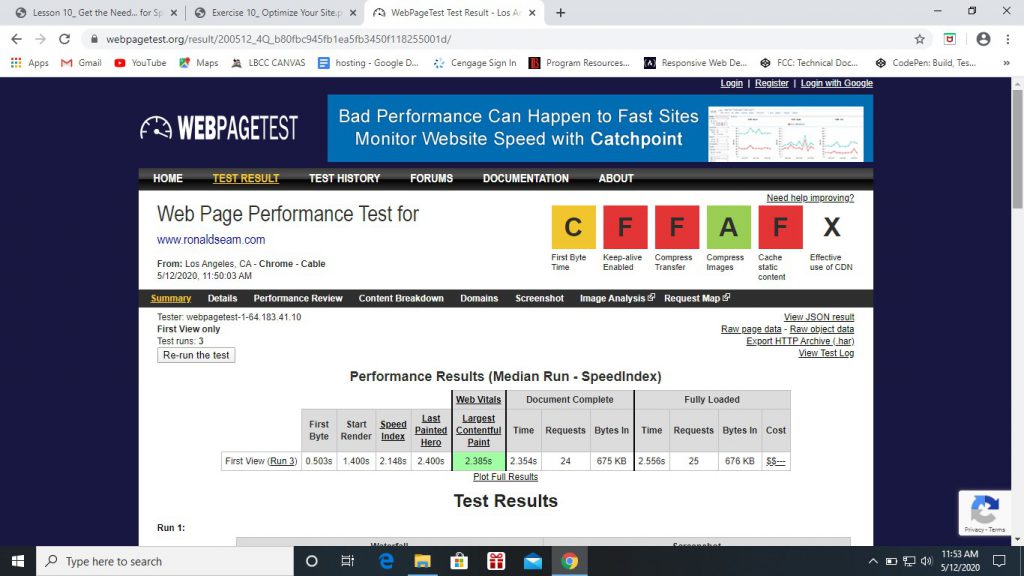
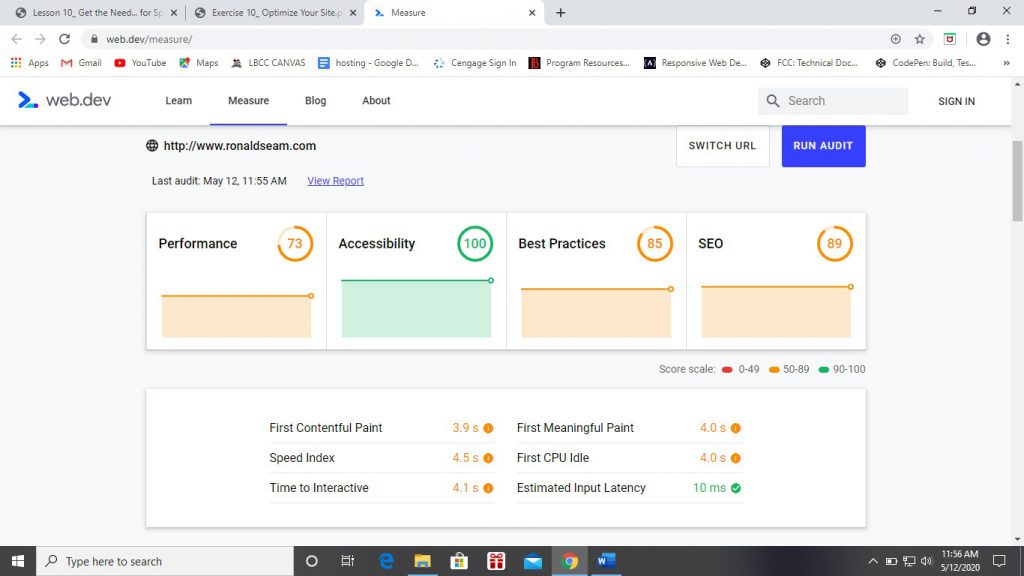
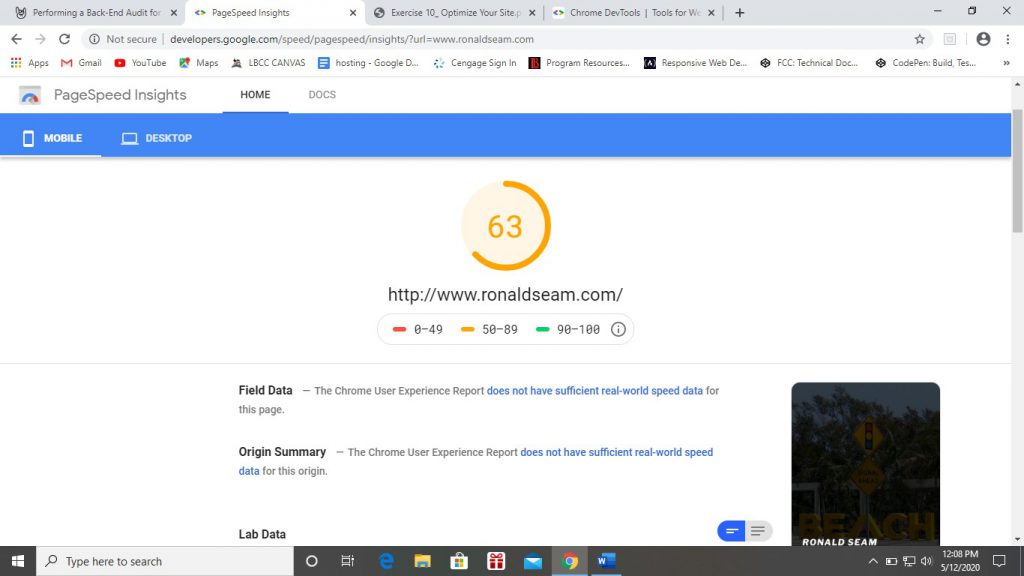
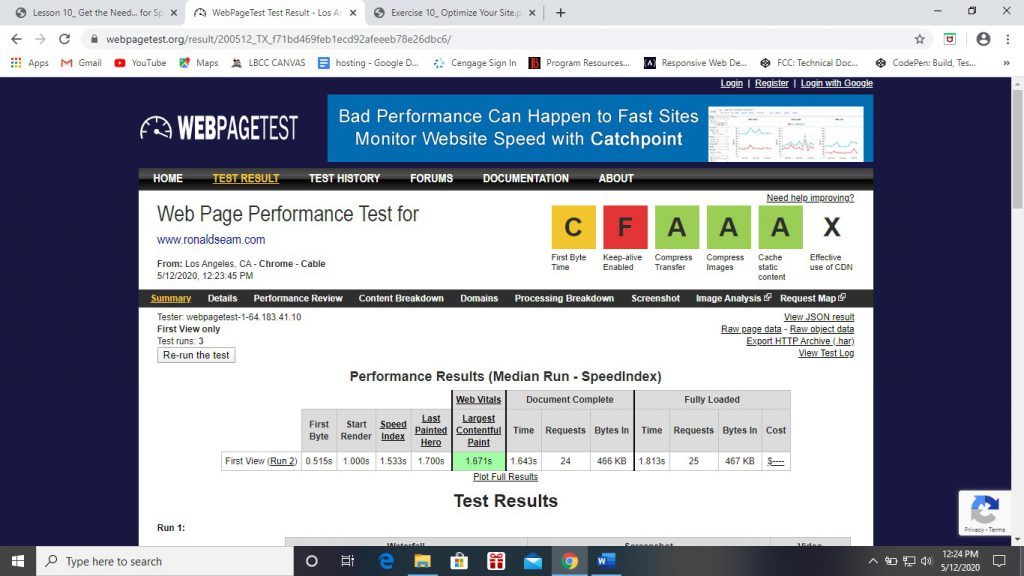
The performance results for my website before making improvements:

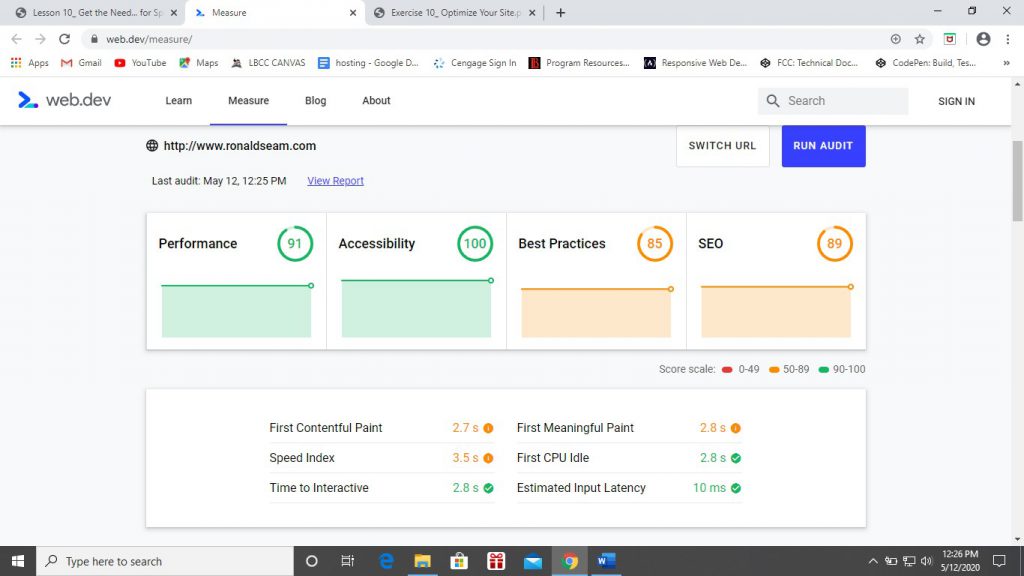
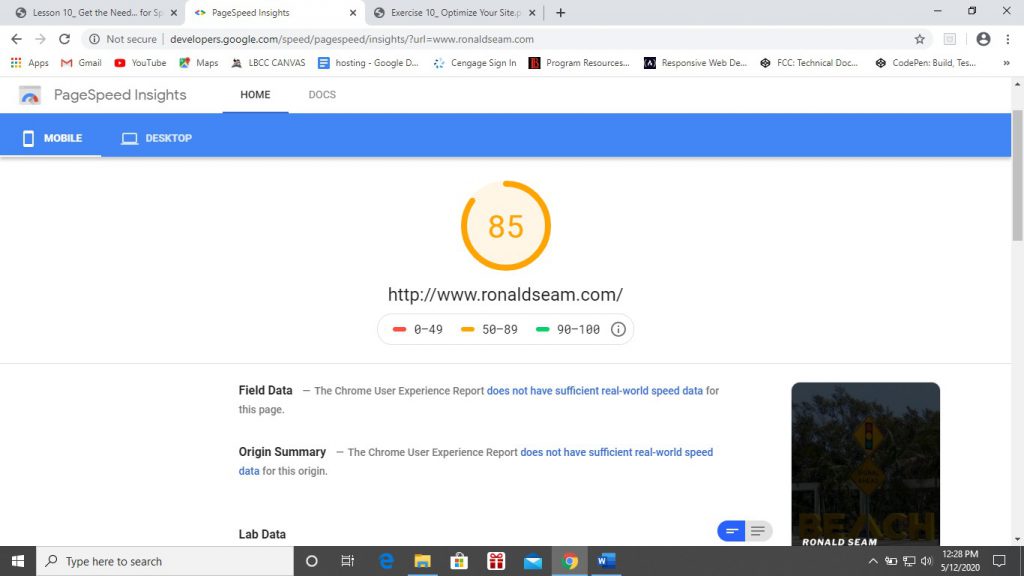
And after making improvements to my website’s performance:

Were you able to improve? Why or why not? Yes, I was definitely able to improve the performance of my website.

First, I went to https://geoffgraham.me/wordpress-how-to-clean-up-the-header/ and copied the helpful script there into the functions.php of my child theme folder.

Second, I went to the Dashboard view of my website and started to deactivate and/or removed plugins that I didn’t need for now to see if that would perhaps improve performance. I deleted the following plugins:

  • No Right Click Images
  • Insert Headers and Footers
  • Hello Dolly

and, although I’m keeping the plugin All-in-One WP Migration, I deactivate this plugin to see if that makes a difference. I will activate this plugin when I’m importing and exporting WordPress site, but other than those times, I think deactivating the plugin might make some improvement to website speed.

To assist me in web page caching, I went with the plugin W3 Total Cache by BoldGrid. It’s an SEO and Performance Optimizer plugin.

What issues did you run into along the way? What did you learn about web performance as a result?

The issue I ran into was that I’m not familiar with DevTools. But in it’s place to go along with WebPageTest and Lighthouse, I used Google’s PageSpeed Insights as recommended in this article: https://theeventscalendar.com/how-to-perform-a-backend-audit-of-your-wordpress-website/

What I learned about web performance is that there is plenty of room for improvements. From the results, I was able to improve Compress Transfer and Cache static content from two letter grade “F” to two letter grade “A” on WebPageTest.

For Lighthouse, I was able to improve the Performance of my website from a score of 73 to a score of 91.

And for Google’s PageSpeed Insights, I was able to improve from 63 to 85. There is still room for further performance improvement, but so far for me it has been a leap in the right direction. My website loads approximately 1 second faster now than before I made performance improvements, which I think is quite substantial in the internet world. A page load speed can make or break a website and could mean the difference between gaining an audience/customer and losing them to a competitor’s website if my website took too long to load.


How is your content coming along? Do you need to refine the design?

I think my website is coming along fine. It’s just a matter of spending more time to add more content. For example, in my blog feed I got “Web Development” covered since it’s the assignments we do each week, but for the “Off-Topic” section of the blog, I need to add some content. I have some ideas of what I would like to post in that section of my blog site. Any content that is workplace safe and family-friendly would be acceptable. I also plan on working on the Portfolio page to list the various web design projects I’ve worked on so far in the Web Development program (freecodecamp, Codepen.io, etc.).

Adding Plugins to Your Site

Which one did you choose? I chose the following plugins:

  • All-in-One WP Migration by ServMask
  • WP Content Copy Protection & No Right Click by wp-buy
  • WP Forms Lite by WP Forms

Why did you choose it?

Well, All-in One WP Migration was a plugin I found when I was dealing with the dilemma of figuring out how to take my WordPress site from local server to live server. Surprisingly enough, a search on YouTube came up with a video posted from Local By Flywheel that recommended All-in-One WP Migration. I figured, well if the same company that I’m using for my local WordPress software is recommending it, then this plugin got to be at least decent. So far, it’s been great. It has over 2 million active installation, 4.5 out of 5 stars (based on 6,281 reviews), and it was last updated 2 weeks ago, so I know they are proactive in making improvements to the plugin.

For WP Content Copy Protection & No Right Click, that came about after I was wondering how I can prevent my images from being saved or downloaded. I wanted to protect my content. It has over 100,000 active installation, 4.5 out of 5 stars (based on 253 reviews), and was last updated 3 weeks ago.

And finally, I decided to go with WP Forms so I can create a Contact Form on my website. I chose this one because it was a familiar name. I had been proactively searching YouTube the last week or two for WordPress tutorial and the WP Forms name had been brought up a few time (either as a video sponsor or a recommended plugin in a YouTube tutorial). It has a 5 out of 5 stars rating based on 6,512 reviews, over 3 million active installation, and it was last updated 3 weeks ago.

What other plugins did you consider? How did they compare to the one you chose? I’ve considered No Right Click Images by Keith P. Graham to protect my images and contents. And for forms, I also considered Ninja Forms by Saturday Drive.

No Right Click Images has a 5 out of 5 stars, but there’s only 32 reviews so far. It does have over 20,000 active installation and was last updated 2 weeks ago. For me, I thought WP Content Copy Protection & No Right Click was the better fit for my WordPress site.

Ninja Forms was reasonably comparable to WP Forms; it has 4.5 out of 5 stars based on 1,051 reviews and has over 1 million active installation. I just decided to go with WP Forms out of curiosity and because more people had reviewed WP Forms and also due to WP Forms having about 2 million active installation over Ninja Forms. I may try out Ninja Forms later on to see what it has to offer. If for nothing else, it’s because the author has a very cool “New Retro Wave” name. Saturday Drive, kind of makes you want to get behind the wheel of an ’80s sports car complete with flip-up headlights and a four speed automatic transmission with “Overdrive”, playing Synthpop/Vaporwave through the four way speaker sound system as you drive along scenic Pacific Coast Highway, near the beach just as the sun is about to set in the Pacific Ocean and the city lights around you just lit up.

What other plugins did you try? I actually did try out No Right Click Images initially, but I found that it didn’t necessarily protect my images as it can still be saved if a visitor were to save the web page for offline viewing or print the web page. It did deliver what it promised as a visitor cannot right click any images to save it, but when a web page is printed or saved, it didn’t prevent an image from being saved that way.

How was you experience browsing through the plugin directory?

Overall, it was pretty good. Overwhelming variety and selection to choose from, but at the end of the day, I just selected what I needed for my website. Looking for plugins was simple from the Dashboard view. Just go to Plugins, click Add Plugins, start searching for a plugin that fits your need.

After you find one, click Install Now and Activate. You can keep track of the plugins you have by clicking on the Installed Plugins tab.

Continue Working on Your Site

Trial and Error

What’s different this week? Other than the blog feed page at https://www.ronaldseam.com/web-development, not much else is different on my page this week. I took a detour this past week in my attempt to better understand WordPress beyond the Gutenberg block-editor level by spending a couple days following along a 47 minute video on youtube.

I spent this past weekend watching this video (a lot of pause and rewind involved as I took notes and typed code as I followed along). I understood maybe 40% at most of what was going on. It did help clarify some things that I didn’t understand and was a step in the right direction in trying to understand the “coding-side” of WordPress; it just wasn’t the giant leap that I had hoped. It also didn’t really yield anything that materialized on my website.

What did you learn that’s worth sharing? I didn’t really learn anything worth sharing, but if there’s one thing I learned for myself is that this is going to take some “trial and error” and some time and effort after class concludes if I want to better understand WordPress beyond the “drag-and-drop” content knowledge.

I would like to say that I understand this article about creating a theme from scratch (https://www.taniarascia.com/developing-a-wordpress-theme-from-scratch/), but I got lost pretty quick. It seems to be well-written. I did save the link to this article with the hope of revisiting it someday and understanding what’s going on.

Did you run into any trouble along the way? How did you solve it? Thank goodness for the Week 5 lesson/lecture being recorded, which allowed me the opportunity to watch and following along the coding lesson which I was then able to use to help me complete the blog feed assignment for web development blog feed (https://www.ronaldseam.com/web-development).

I have also searched for a well-written book on Amazon about working with and using WordPress, but so far I’ve only found ones that have a “no coding” (drag-and-drop, plug-ins, etc.) approach which is exactly what I’m trying to avoid.

I wish I can say I get “that wonderful feeling” from WordPress (and I genuinely mean this) like I do when I see a Disney movie intro, like the one here:

https://www.youtube.com/watch?v=vBLXhx9vdHg

I just gotta remind myself that Disney the company exists because the founder failed over and over and over again, but didn’t give up. Perhaps that’s the moral of this blog post here.

Although it eludes me now, I hope to get “that wonderful feeling” when I work with WordPress sometime in the future.

Blog Feed

Cool Beanzzzzz

Was it easy to use it or super confusing? Well, I actually went back and watched the recorded lecture. I followed along with the coding exercise, template name: Cool Beanzzzzz (anythingyouwant.php). It was those codes that I typed after following along the lecture that I used as the base for my layout for the blog feed seen on the Web Development page (Blog >> click on “Web Development”). I gave it the Template Name: Web Development Category.

Did you play with any of the attributes to see how they affect the order of posts? I utilize <?php the_excerpt ?> and that did make the blog feed look much better.

How is the course going so far? I’m doing what I can to keep up with the course.

error: Content is protected !!